How To Share Favorites
|
Favorite GalleriesWhile you are reviewing your galleries, it is possible to create a custom gallery of your favorites. You may create the gallery of favorites as a registered or un-registered user. Your favorites gallery is able to be shared with your photographer and/or your friends. However, this custom gallery of favorites is only stored on your local machine until you register your account or share the gallery as indicated below. So when you set up a favorites gallery, make sure you share it with yourself before you switch machines, or register so that you may view them again later. |
|
1) If you wish to view your favorites at a later time, register for an account. |
Create an Account Here |
|
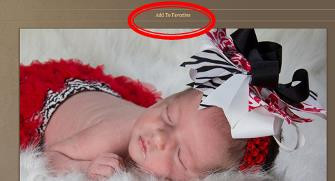
2) While you are reviewing an individual image, select the “Add to Favorites” link above an image.
|
|
|
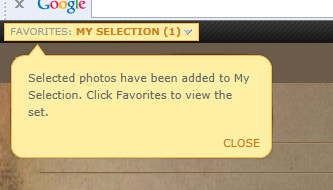
3) When the first image is added, you will see a speech bubble show up indicating that favorites have been added. At this point, your favorite list is only located on your local computer.
|
|
|
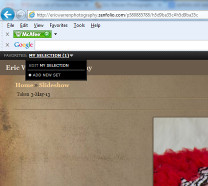
4) When you are done adding, mouse over the favorite list to see a drop down of your favorites. Next click 'Edit' on the favorites list you would like to edit.
|
|
|
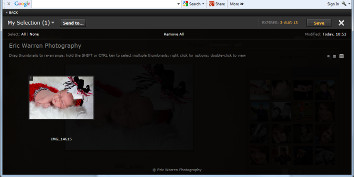
5) You will now see a new page with your favorites.
|
|
|
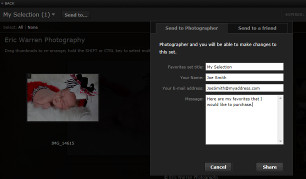
6) Click ‘Send To’ in order to send the favorites list either to the photographer or someone else. After you send the list to yourself or to a friend, you will be able to pull up your list for a limited time.
|
|
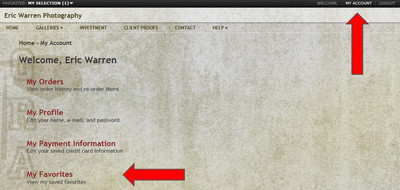
| 7) If you have created an account, you may later login to return to your favorites. After Logging back in, goto "My Account" and then "My Favorites" |
|
For more detailed information, you may also watch the below video.
Sharing with Facebook, email, ect |
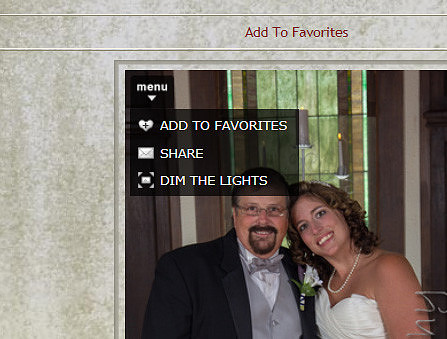
| 1) Mouse over an image and click "Share" menu |
|
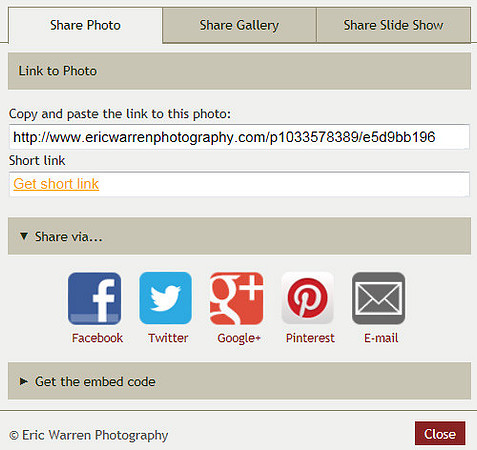
| 2) Pick your sharing method from the provided options |
|